
Getting started
Hermeneus runs on iPhone, iPad and Mac (a Mac with Apple silicon). It is free and needs no account. Once it is installed, everything is on your device: the texts, the lexicons, search and OCR. The download is large because the lexicons are, so use Wi-Fi for it.
The welcome screens
The first time Hermeneus opens, five short screens introduce it: Hermeneus itself, Reading, Search, Your Library, and Private by design. Swipe between them (on the Mac use the buttons or the ← → keys), or tap Skip on any screen. The last screen offers two ways in:
- Get started opens 1 John 1 in the Greek (SBLGNT) with the Berean Standard Bible beside it.
- Create a local profile asks for your name, the text you want to read first (the Greek New Testament, the Hebrew Bible or an English Bible), the English to show beside it (BSB, WEB or KJV), a theme and a text size. All of this stays on the device. See Profile and settings.
A four-step tour then points at the real controls: the text picker, a word, search and the Library. Got it or Skip tour closes it.
To see the welcome and tour again: on the iPhone, More ▸ Welcome & tour; on the iPad and Mac, ⚙ Settings ▸ Profile ▸ Welcome & tour; on the Mac also Help ▸ Welcome & Tour.
Finding your way around
On the iPhone
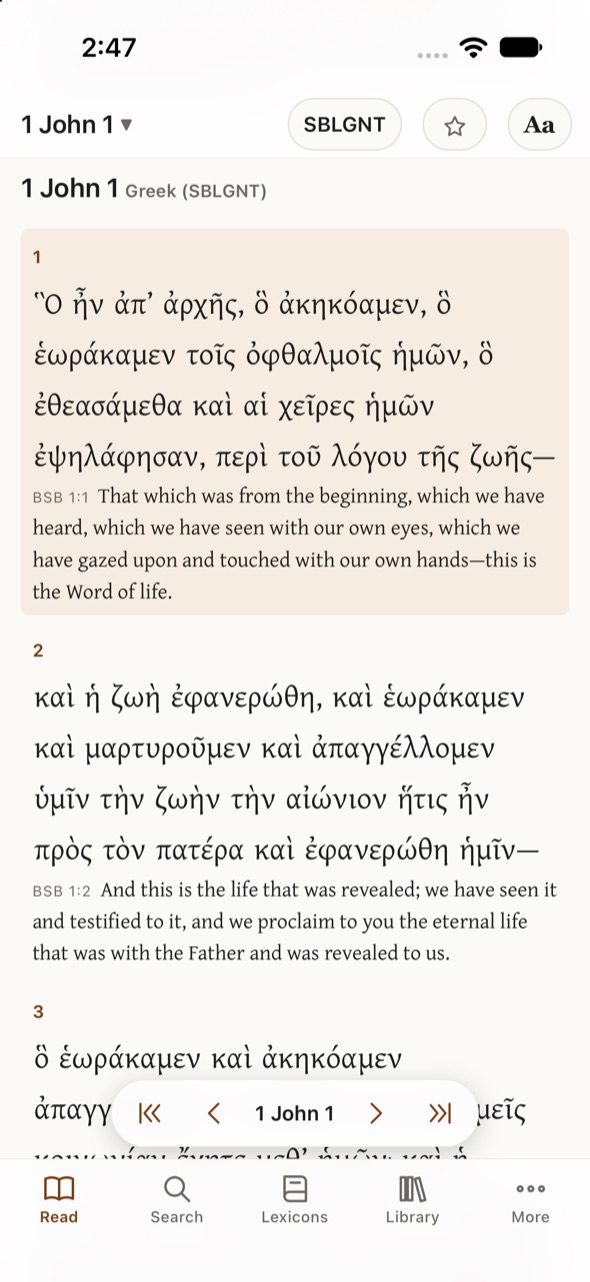
A tab bar at the bottom has Read · Search · Lexicons · Library · More. In the reader, the top bar shows the book and chapter (tap for a grid of chapters), the text (tap to switch), ☆ to pin this place, and Aa for text size, width, theme and layout. The bars slide away while you read and come back when you scroll up or tap the text.
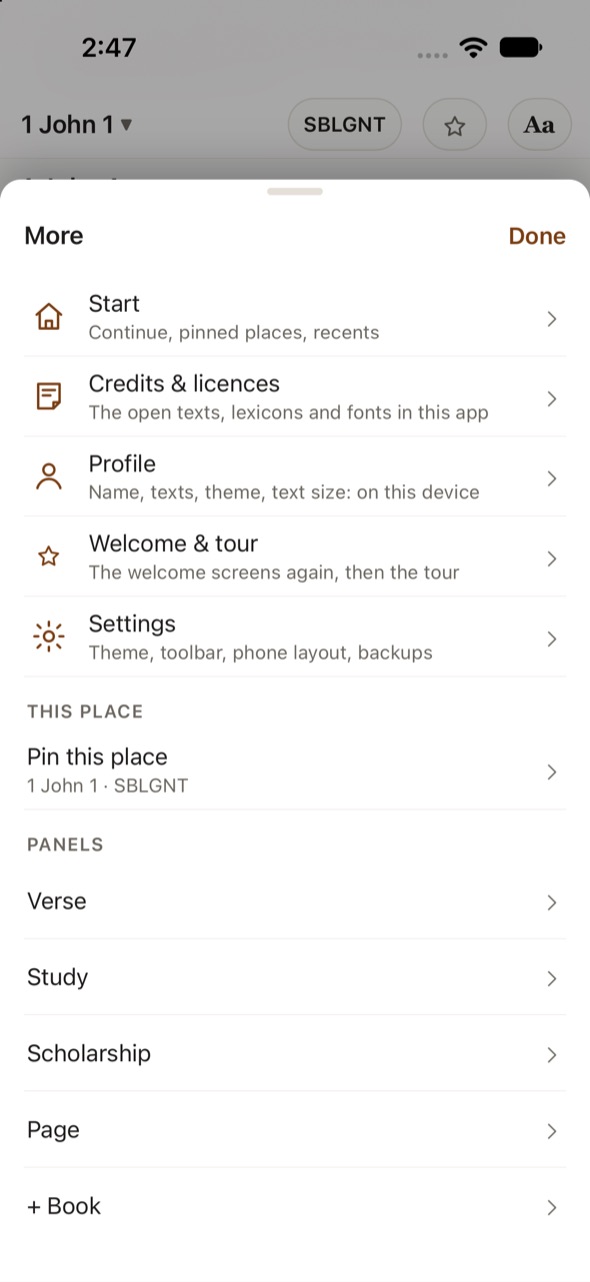
More holds Start, Credits & licences, Profile, Welcome & tour, Settings, Pin this place, and the Verse and Study panels.
On the iPad and the Mac
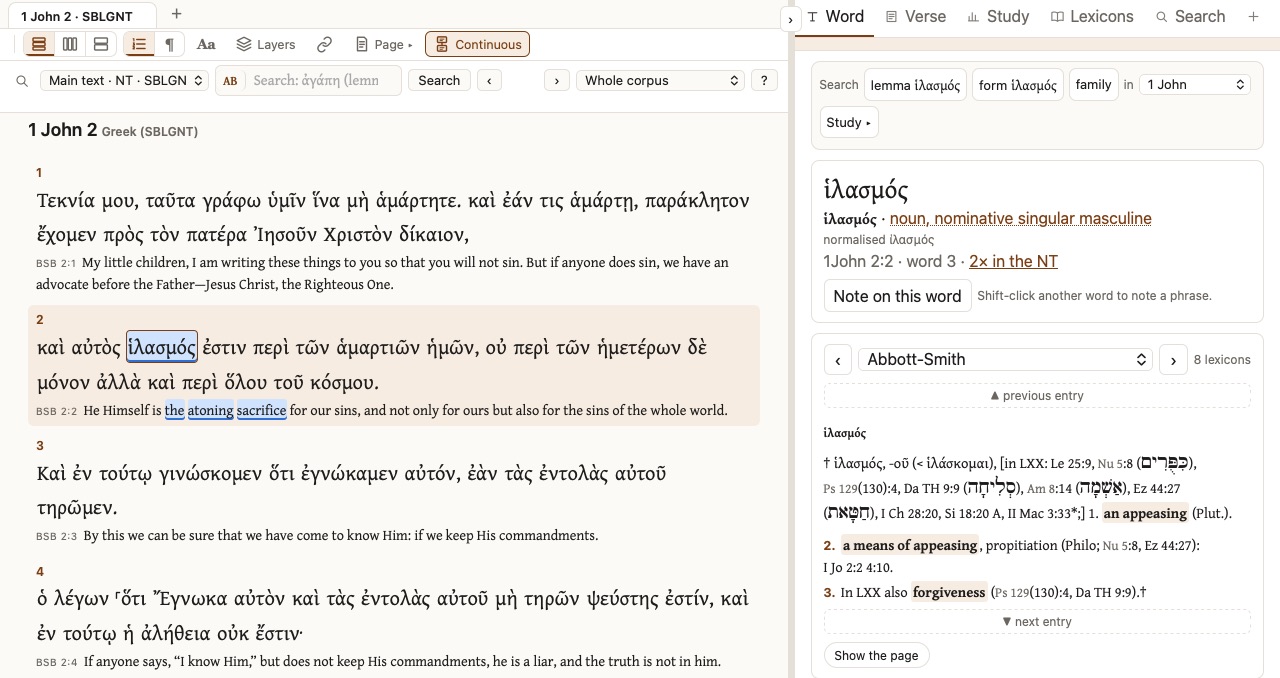
The top bar switches between Texts (the full reader), Read (one text in large type, for quiet reading), Focus (the text alone; Esc brings everything back) and the Library; ⚙ at the right opens Settings. Under it is the reading area, with the reading toolbar and the search bar, and the tool panel with the tabs Word, Verse, Study, Lexicons and Search. Drag the divider between the text and the panel to resize them.
On the iPad: in portrait the tool panel sits under the text. Drag the divider to change the split.
On the Mac: the menus have File ▸ Import PDF… (⌘O); View ▸ Actual Size, Zoom In, Zoom Out (⌘0, ⌘+, ⌘−, remembered), Reload and Full Screen; Go ▸ Back, Forward, Reader and Library; Help ▸ Welcome & Tour and Credits & Licences; and Hermeneus ▸ About Hermeneus and Profile….
Reading
Choosing a book and a text
Hermeneus has five texts:
- SBLGNT: the SBL Greek New Testament, with MorphGNT parsing and lemmas for every word.
- WLC: the Hebrew Bible in the Westminster Leningrad Codex, with the Open Scriptures morphology.
- BSB (Berean Standard Bible), WEB (World English Bible) and KJV (King James Version).
On the iPad and Mac the navigation controls are under the text: ⏮ ‹ › ⏭ (previous and next book and chapter), the
book, the chapter, the text, and a Go to box that takes a reference such as
1 Jn 2:2, Rom 3:25-26 or Gen 1.
On the iPhone: tap the book and chapter in the top bar for a grid of chapters, and the text name to switch versions. Swipe left or right to turn the chapter, or use the ⏮ ‹ › ⏭ pill above the tab bar.
Stacked, Columns and Split
The first buttons on the reading toolbar choose how texts sit together:
- Stacked: one text, with others as lines under each verse (for example the Greek with the BSB under it).
- Columns: texts side by side, one row per verse, scrolling together. + Add text adds a column.
- Split: texts in boxes one above the other, kept in step verse by verse.
Hover over or tap an English word and the Greek or Hebrew word it translates lights up, and the other way round.
On the iPhone: Aa ▸ Layout offers Stacked and Split; Columns needs a wider screen. On the iPad: Columns works best in landscape.
Start, pins and where you left off
The Start screen (iPhone: More ▸ Start) offers Continue, your pinned places and your recent places. A pin remembers a place and its layout: ☆ in the iPhone’s top bar, or More ▸ Pin this place. In Settings, Open Hermeneus to chooses whether the app opens on Start, where you left off, or a pinned place.
Text size and themes
Aa on the reading toolbar sizes the reading text; Settings ▸ Reading sets the line width (S, M, L or Full). The themes are Light, Dark, Sepia, Solarized, Classic, High contrast, Nord and Night (true black), and Auto, which follows the device’s light and dark appearance; you choose what Auto shows by day and by night.
Tap a word
Tap (or click) any Greek or Hebrew word. On the iPhone a sheet opens; on the iPad and Mac, the Word tab. It shows:
- the lemma (dictionary form) and the parsing, for example ἱλασμός: noun, nominative singular masculine;
- the lexicons, one at a time: ‹ › moves to the next lexicon, and the menu jumps to any of them.
For a New Testament word the order is Abbott-Smith, Thayer, Moulton–Milligan, TBESG, Dodson, Strong’s, LSJ and Middle Liddell; for other Greek, LSJ and Middle Liddell come first; for Hebrew, BDB, TBESH and Strong’s. Once you pick a lexicon in the menu, it comes first from then on.
On the Mac: the Instant Details bar at the bottom shows a word’s parsing as you move the mouse over it; click the word for the full Word tab.
Notes and your translation
Select a verse by tapping its number, then open the Verse panel (iPhone: More ▸ Verse; iPad and Mac: the Verse tab). There you can write a note on the verse and your own translation of it. Your translation is a text of its own, My translation (tagged Mine), which you can read beside the original like any other. Notes and translation are saved on the device.
Search
Search finds words in the Greek New Testament (SBLGNT) and the Hebrew Bible (WLC) by lemma, form or root; the English Bibles are searched as ordinary words. On the iPhone use the Search tab; on the iPad and Mac, the search bar under the reading toolbar. Hits are marked in the reader, in place; ‹ › steps through them, and the Search tab lists them by book.
Accents, breathings and vowel points are optional: αγαπη finds
ἀγάπη. No Greek or Hebrew keyboard? The ΑΒ / אב button beside the box
types Greek or Hebrew from an ordinary keyboard.
What to type
| Type | Finds |
|---|---|
ἀγάπη | The lemma: every form of the word (ἀγάπη, ἀγάπης, ἀγάπην …). |
=ἀγάπης | This form only, exactly as written. |
+אהב | The root and its family: every word from it (for Greek, the word family of a lemma). |
lemma: form: root: | The same three, spelled out. |
ἀγαπ* · ἀγαπ?ω | Wildcards: * any letters, ? one letter. |
ἀγάπη μένω | Both words in the same verse. |
ἀγάπη | φιλία or OR | Either word. |
!φόβος or NOT | Verses without the word. |
"ὁ θεός" | A phrase: these words in this order. |
a <WITHIN 3 WORDS> b · a <FOLLOWED BY> b | Words near each other. |
Ranges
Add in: to search part of the Bible, or choose a range from the menu at the right of the search bar
(the Pentateuch, the Prophets, the Gospels, the Johannine writings, Paul’s letters and others).
| Type | Searches |
|---|---|
in:1Jn | one book |
in:Rom-Gal | a run of books, Romans to Galatians |
in:1John-3John | the three letters of John |
John 13-17 | a few chapters of one book |
For example μένω in:1Jn finds every form of μένω in 1 John, and
+אהב in:Gen every word of the root אהב in Genesis.
Lexicons
Hermeneus includes thirteen lexicons, all public domain or openly licensed:
| Language | Lexicons |
|---|---|
| New Testament Greek | Abbott-Smith (1922), Thayer (1889), Moulton–Milligan (1914–29), TBESG (STEPBible), Dodson, Strong’s Greek |
| Classical Greek | Liddell–Scott–Jones (LSJ, 9th ed.), Middle Liddell (1889) |
| Hebrew | Brown–Driver–Briggs (BDB), TBESH (STEPBible), Strong’s Hebrew |
| Latin | Lewis & Short (1879), Lewis, Elementary Latin Dictionary (1890) |
The Lexicons tab reads any of them straight through: choose the lexicon in the menu (grouped Greek, Hebrew and Latin) and page with ‹ ›. Its search box looks up a Headword, an English gloss (for example “propitiation” finds ἱλασμός and ἱλαστήριος) or the content of the entries, with suggestions as you type. You can type Greek, Hebrew, transliteration or English.
Good to know: Thayer and Moulton–Milligan are machine-read from old printed pages, so their Greek has occasional errors. The digital BDB (Open Scriptures) is a work in progress: many entries give the definitions without BDB’s full discussion. Why some well-known lexicons are missing: see the FAQ.
Library, import and OCR
The Library holds the PDFs you import. Import only files you own or have the right to use; they stay on your device and only you see them.
Importing PDFs
- iPhone and iPad: Library ▸ Import, and choose files in the Files picker. Or, in Files, Mail or Safari, share a PDF and pick Hermeneus.
- Mac: File ▸ Import PDF… (⌘O), drop PDFs on the window or on the Dock icon, or in Finder use Open With ▸ Hermeneus.
Scanned pages (OCR)
A PDF that already has text (most journal downloads) is ready almost at once. A scan, with no text layer, is read by OCR on the device, with Tesseract’s Greek, Hebrew, Latin and English models and Apple’s Vision as a fallback. It takes a few seconds a page, longer on an older iPhone; a long scan can take some minutes, and nothing is sent anywhere to do it.
OCR is good on printed English and Greek. Pointed Hebrew comes out with most consonants right but some vowels lost; Hebrew with cantillation marks is read poorly. Check a quotation against the page view before you rely on it.
Reading, searching and citing
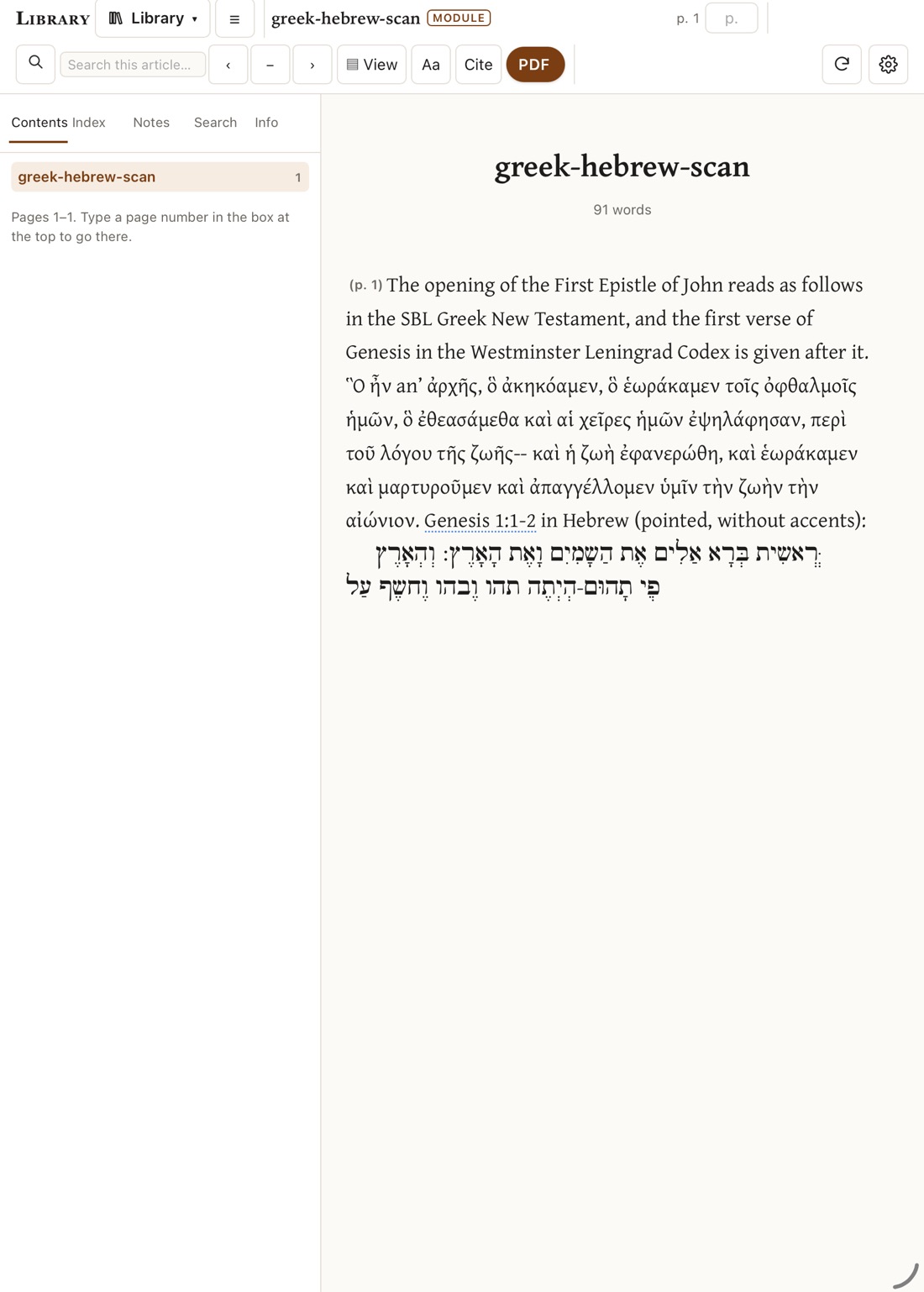
- Each imported PDF becomes a module. Read as text shows it as clean, reflowed text with its contents, notes and a search of its own; PDF shows the original pages.
- Printed page numbers are found from the page folios, so you can cite the right page; Cite copies a citation.
- Bible references in the text are links, and Greek words open in the lexicons like words in the Bible.
- Search your PDFs, at the top of the Library, searches every imported file at once.
- Remove deletes a PDF and its module from the app.
Profile and settings
Your local profile
A profile is optional. It holds your name, the text you read first, the English beside it, your theme and text size, and it is kept only on this device: no account, no password, nothing sent anywhere. Open it from More ▸ Profile on the iPhone, ⚙ Settings ▸ Profile on the iPad and Mac, or Hermeneus ▸ Profile… on the Mac. For now there is one profile per device.
Settings
⚙ Settings (iPhone: More ▸ Settings) is grouped into:
- Appearance: the colour theme, and what Auto shows by day and by night; text size and the lines under each verse.
- Reading: the layout (Stacked, Columns, Split), the line width, what Hermeneus opens to, and the phone layout.
- Copy & citation: whether copying adds a citation, and its style (for example the SBL Handbook of Style).
- Toolbar: show, hide and rearrange the toolbar buttons.
- Profile: your profile, the welcome and tour, and Credits & licences.
Your settings and your place are saved on the device and come back the next time you open the app.
Offline and your data
Hermeneus works with no connection at all, in flight mode or in a library basement. The reader inside the app talks only to itself on the device; it loads nothing from the internet. The only web links are the licence links on the Credits page, which open in your browser if you tap them.
Your notes, translation, profile, settings and imported PDFs are kept in the app’s own storage on the device. They are included in your device’s own backups (iCloud Backup, or a backup to your computer) like any app’s documents. Deleting the app deletes them. See the privacy policy.
Getting help
Something not working, or not clear? See the FAQ, or write to support@hermeneus.app; the Support page says what to include.